


Video Converter:Compress Video
4.4836.00 Reviews
App Specs
- Version
- 4.1.2
- Updated On
- License
- Free
- Downloads
- 5,000,000+
- Developer
- DictionaryAndTranslator
- Categories
- Video Players & Editors
- Platform
- Android, iOS
Screenshots
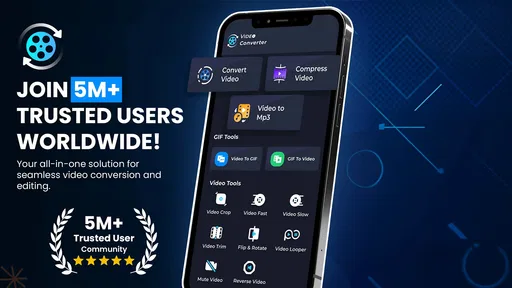
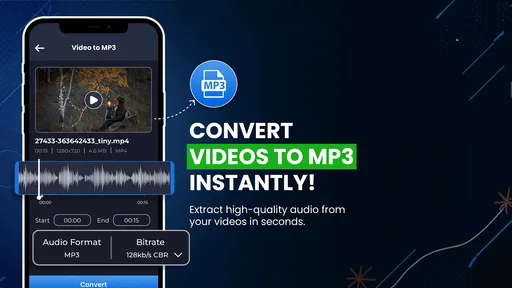
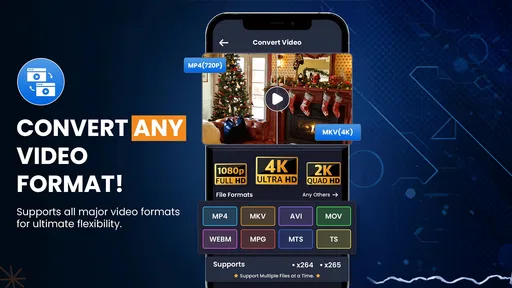
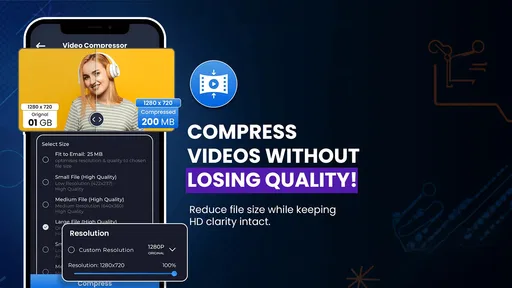
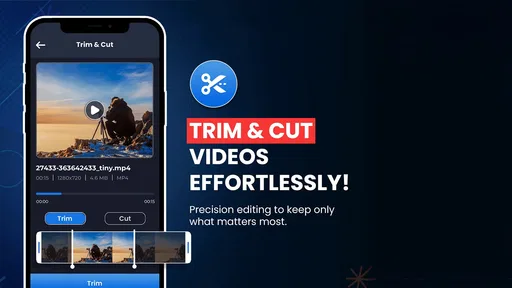
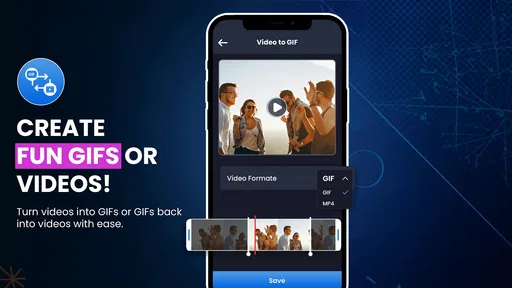
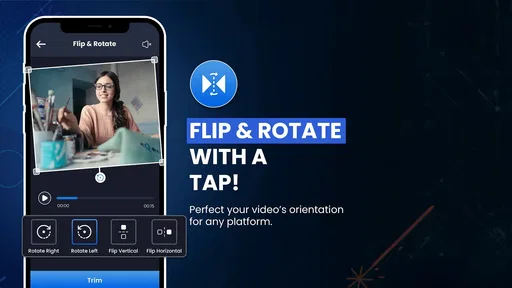
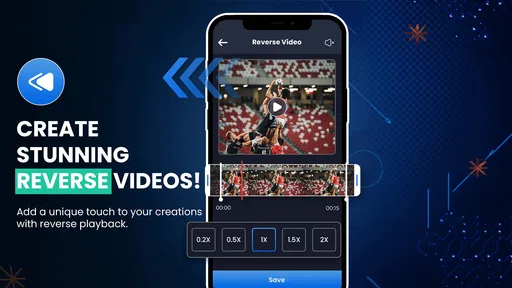
 Analysis by AppCompare
I judge a video utility less by a long list of controls than by whether it helps with a real file problem without turning a quick task into an editing project. Video Converter: Compress Video is aimed at that practical middle ground: making videos easier to handle and changing their format, with audio conversion as another use. It makes the most sense when I want a straightforward tool for occasional file preparation, rather than a full editor for polishing footage.
A handy tool for a specific kind of video task
The name suggests compression, but the app sits in the broader video converter space. Its developer is DictionaryAndTranslator, and its central appeal is utility: prepare a clip for sharing, storage, or a different playback need. That focus is useful because these jobs often come up between recording and sending, when opening a feature-heavy editing suite feels like too much work.
For example, imagine I record a family moment and want to send it to a relative, but the original file is awkward to handle. A converter can give me another way to prepare the clip without trimming it into a montage or adding effects. I would still check the resulting file before deleting the original: compression is a trade-off, and a smaller file may lose detail that matters on a larger screen.
Where it fits among the alternatives
Phone galleries and social apps can already handle simple sharing, while desktop editors offer more control over timelines, colour, and sound. This app’s useful niche is the step between those options: a dedicated converter for people who need to change a file rather than create a finished video. If the destination accepts the original clip, using the built-in sharing flow may be quicker. If I need precise editing or dependable control over every export detail, a full editor is a better fit.
That distinction helps set expectations. I would reach for a converter when a file needs to be more manageable or its audio is useful on its own, not when I want a comprehensive media library or professional post-production workflow. Before processing an important recording, I’d test with a short, nonessential clip and compare the output on the device or platform where it will actually be used.
Getting Started with Video Conversion
First things first, downloading and setting up Video Converter: Compress Video is a breeze. You can snag it from both the Google Play Store and the Apple App Store, so it doesn’t matter if you're team Android or iOS. Once installed, the app welcomes you with a clean, user-friendly interface. No overwhelming menus or unnecessary clutter—just what you need to get started right away.
Features That Stand Out
So, what makes this app worth your time? Let's dive into the features. For starters, the app supports a wide range of video formats. Whether you're dealing with MP4, AVI, MOV, or any other common file type, this app has got you covered. Plus, it handles batch conversions, so you can convert multiple videos at once. Talk about a time saver!
Worth Reading Before You Choose

EA SPORTS FC Mobile 26 Is a Bigger Football Game, but It Takes Time

Flipboard Shows What News Apps Must Do Beyond the Feed

Switching to Android Auto Means Rethinking Your Driving Routine

Google Calendar Makes a Crowded Week Easier to Manage

Ludo King Makes the Most of the Minutes Between Plans

Baby Panda World Brings Quick Play to Modern Phones, but Its Game Library Feels Busy
Another cool feature is the customization options. You can tweak resolution, frame rate, and even the bitrate to get your videos just how you like them. It's perfect if you're looking to compress videos without sacrificing too much quality. Need just the audio? No problem. The app can extract audio from your videos in various formats, so you can keep those soundtracks or voiceovers with ease.
Practical choices before you convert
Those controls matter most when I start with the destination in mind. If I’m preparing a clip for a messaging app, I’d prioritize a manageable file over preserving every bit of detail; for an archive or a recording I may want to edit later, I’d keep the original and avoid aggressive compression. Resolution and bitrate affect how much visual information survives, while frame rate can influence how smooth motion looks. I wouldn’t change all three at once unless I had a reason, because then it is harder to tell which setting caused a disappointing result.
Batch conversion is convenient when several clips need the same treatment, such as a group of recordings headed for one shared folder. It can save repetitive work, but it also makes a small settings mistake apply to every selected file. My practical tip is to test one representative clip first, inspect its picture and sound, and only then process the rest as a batch. That extra check is especially worthwhile for footage with fast movement, fine detail, or speech that must remain clear.
Audio extraction also has a more specific use than simply saving a song. A spoken explanation, interview answer, or voice memo captured alongside video may be easier to replay as audio while commuting or reviewing notes. I’d listen to the exported result before relying on it, particularly if the original recording includes quiet speech or background noise. The video’s audio track is what the conversion starts from; extracting it doesn’t repair a poor recording.
Performance and Ease of Use
Performance-wise, the app is pretty solid. It processes videos quickly, and I didn't notice any crashes or bugs during my testing. The developers clearly put in the work to ensure a smooth user experience. Plus, the app doesn’t drain your battery like some other heavy-duty editors out there. It’s lightweight and efficient, which is a huge plus if you’re on the go.
Using the app is as simple as it gets. You pick a video, choose your desired output settings, and hit convert. The app does the rest, and you'll have your compressed video ready in no time. The intuitive design means even if you're not tech-savvy, you'll have no trouble navigating through the options.
What to check after processing
“Done” should mean more than seeing a completed conversion screen. I’d open the exported file and check that it plays from beginning to end, that the audio stays in sync, and that any subtitles or visual details I care about still appear as expected. Then I’d confirm that the output is saved somewhere I can find and share it. These small checks prevent the annoying situation where I clear space or send a clip only to discover that I kept the wrong version.
Another useful habit is to keep the source until the converted copy has reached its destination successfully. A smaller export may be ideal for sharing, but the original remains valuable if I later need a higher-quality copy or want to make a different conversion. For storage cleanup, I’d compare the two files and decide whether the space saved is worth the quality change, rather than assuming every conversion is automatically an improvement.
Price, compatibility, and expectations
The app is free to install, is rated for Everyone, and has optional in-app purchases ranging from under a dollar to just under a hundred dollars per item. That makes trying the basic tool a low-commitment way to see whether its workflow suits me, but I’d look carefully at any purchase screen before paying and decide whether I need the option being offered. The free label does not mean every possible feature or usage is necessarily included without a purchase.
It has a 4.4 average from around 46,000 ratings, with more than five million installs, so it has clearly found an audience among people looking for mobile video tools. It was released on March 4, 2021, and version 4.1.2 requires Android 8.0 or later. Those details are useful when checking compatibility, especially before planning a conversion on an older phone; processing a large file can also be more demanding than simply browsing or sharing it.
Why You Might Love It
If you’re someone who frequently shares videos on social media, this app is a game-changer. Social platforms often have size limits for uploads, and Video Converter: Compress Video helps you meet those requirements without losing quality. It’s also great for freeing up space on your device. You can compress those large, high-quality videos without deleting them or compromising on quality.
Moreover, the app’s ability to maintain high video quality even after compression is a standout feature. You won’t end up with pixelated messes that make you cringe. The developers clearly understand that quality matters, and they’ve ensured their app delivers.
Who should use it—and who should look elsewhere
I’d recommend it to someone who regularly receives or records videos and occasionally needs a more manageable copy, a different format, or an audio-only version. It is particularly appealing if you prefer doing a quick conversion on a phone instead of transferring files to a computer. People who want to adjust common output settings may also appreciate having resolution, frame rate, and bitrate in the same practical workflow.
I’d skip it if my main goal were to make a finished, carefully edited film. Conversion is not a substitute for a timeline editor when I need to remove sections, arrange shots, add titles, or make detailed sound edits. I’d also choose another route when a service already accepts the original file, or when a one-off job is better handled by a tool I already use. The app is most valuable when conversion itself is the task, not an extra step added without a clear benefit.
Final Thoughts
Overall, Video Converter: Compress Video is a must-have tool for anyone who deals with videos on a regular basis. Whether you’re a social media enthusiast, a professional videographer, or just someone who loves capturing moments, this app will make your life easier. It’s efficient, easy to use, and gets the job done without any fuss.
If you're tired of struggling with large video files, give this app a shot. It's not just about compressing videos; it's about doing so in a way that respects your time and needs. So, go ahead, download it, and see for yourself why it’s a favorite among users. Your video library will thank you!
My recommendation is to treat it as a practical converter, not as a guarantee that every file can be made smaller with no visible cost. For a quick share, a space-conscious copy, or audio pulled from a recording, its focused approach is appealing. For valuable footage, I’d preserve the original, test settings on a sample, and review the finished file before relying on it. With that sensible workflow, it can earn a place on the phone of someone who often needs to make video files easier to use.
Pros
- Supports a wide range of video formats.
- Fast conversion speeds without quality loss.
- User-friendly interface for easy navigation.
- Batch processing saves time on multiple files.
- Adjustable settings for customized output.
Cons
- Contains ads that can be intrusive.
- Limited features in the free version.
- Occasional bugs during conversion.
- Requires internet for full functionality.
- Lacks advanced editing tools.
FAQs for Video Converter:Compress Video
What file formats does Video Converter: Compress Video support?
Video Converter: Compress Video supports a wide array of file formats including MP4, AVI, MOV, FLV, MKV, and more. This makes it versatile for users who need to convert videos from different sources. Additionally, it supports high-definition formats, ensuring that video quality is maintained across conversions.
How does the app handle video quality during compression?
The app uses advanced algorithms to ensure minimal loss of quality during the compression process. Users can select different compression levels, allowing them to balance between file size reduction and video quality retention. The app also provides a preview feature to check the quality before finalizing the compression.
Is the app user-friendly for beginners?
Yes, Video Converter: Compress Video is designed with an intuitive interface that is easy to navigate. The app provides step-by-step instructions and tutorials to help beginners understand the conversion and compression process. Additionally, the app includes customer support for any assistance needed.
Are there any in-app purchases or subscriptions required?
While Video Converter: Compress Video offers a free version with basic features, there are in-app purchases available for advanced features such as batch processing, higher resolution outputs, and ad removal. Users can choose to subscribe for a monthly or yearly plan to access premium features.
Can I convert videos in batch mode?
Yes, the app supports batch processing, allowing users to convert multiple videos simultaneously. This feature is particularly useful for users with a large number of files to convert, as it saves time and effort. However, batch processing may be limited or require a premium subscription in the free version.


